
Open-AutoGLM: Open Source Phone AI Assistant Framework Based on AutoGLM
Open-AutoGLM is a phone AI assistant framework built on AutoGLM, enabling multimodal screen understanding and automated operations.
Published 314 days ago. Content may be outdated.
Project Introduction
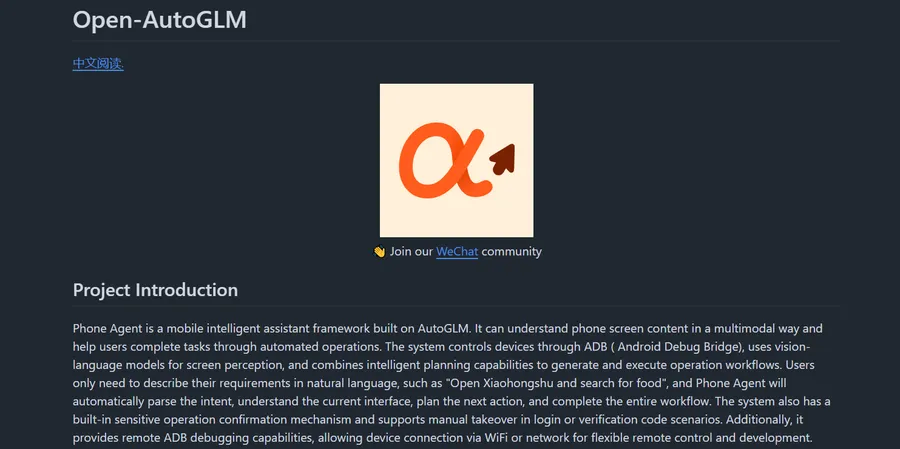
Open-AutoGLM (Phone Agent) is a mobile intelligent assistant framework built on AutoGLM. It can understand phone screen content in a multimodal way and help users complete tasks through automated operations.
Core Features:
- Controls devices through ADB (Android Debug Bridge)
- Uses vision-language models for screen perception
- Combines intelligent planning capabilities to generate and execute operation workflows
- Users only need to describe their requirements in natural language, such as “Open Xiaohongshu and search for food”, and Phone Agent will automatically parse the intent, understand the current interface, plan the next action, and complete the entire workflow
Safety Mechanisms:
- Built-in sensitive operation confirmation mechanism
- Supports manual takeover in login or verification code scenarios
- Provides remote ADB debugging capabilities, allowing device connection via WiFi or network
⚠️ This project is for research and learning purposes only. It is strictly prohibited to use it for illegal information gathering, system interference, or any illegal activities.
Model Download
| Model | Download Links |
|---|---|
| AutoGLM-Phone-9B | 🤗 Hugging Face / 🤖 ModelScope |
Currently, this model only supports Chinese. A multilingual version is coming soon.
Environment Setup
1. Python Environment
Python 3.10 or above is recommended.
2. ADB (Android Debug Bridge)
- Download the official ADB installation package, and extract it to a custom path
- Configure environment variables
MacOS Configuration:
       # Assuming the extracted directory is ~/Downloads/platform-tools
export PATH=${PATH}:~/Downloads/platform-tools
Windows Configuration: Refer to third-party tutorials for configuration.
3. Android Device Preparation
Requires Android 7.0+ device or emulator with Developer Mode and USB Debugging enabled:
- Enable Developer Mode: Go to
Settings > About Phone > Build Numberand tap it quickly about 10 times until “Developer mode enabled” appears - Enable USB Debugging: Go to
Settings > Developer Options > USB Debuggingand enable it - Connect your phone to the computer and run
adb devicesto check if device information appears
4. Install ADB Keyboard
Download the ADB Keyboard installation package and install it on the Android device.
After installation, enable ADB Keyboard in Settings > Input Method or Settings > Keyboard List.
Deployment Preparation
1. Install Dependencies
       pip install -r requirements.txt
pip install -e .
2. Configure ADB
Make sure your USB cable supports data transfer (not just charging), then connect the device:
       # Check connected devices
adb devices

# Output should show your device, e.g.:
# List of devices attached
# emulator-5554   device
3. Start the Model Service
Deploy the model service using vLLM:
       python3 -m vllm.entrypoints.openai.api_server \
 --served-model-name autoglm-phone-9b \
 --allowed-local-media-path /   \
 --mm-encoder-tp-mode data \
 --mm_processor_cache_type shm \
 --mm_processor_kwargs "{\"max_pixels\":5000000}" \
 --max-model-len 25480  \
 --chat-template-content-format string \
 --limit-mm-per-prompt "{\"image\":10}" \
 --model zai-org/AutoGLM-Phone-9B \
 --port 8000
After successful startup, access the model service via http://localhost:8000/v1.
Usage
Command Line
       # Interactive mode
python main.py --base-url http://localhost:8000/v1 --model "autoglm-phone-9b"

# Specify task
python main.py --base-url http://localhost:8000/v1 "Find the top-rated cinema nearby and navigate me there by foot"

# List supported apps
python main.py --list-apps
Python API
       from phone_agent import PhoneAgent
from phone_agent.model import ModelConfig

# Configure model
model_config = ModelConfig(
    base_url="http://localhost:8000/v1",
    model_name="autoglm-phone-9b",
)

# Create Agent
agent = PhoneAgent(model_config=model_config)

# Execute task
result = agent.run("Open Taobao and search for wireless earphones")
print(result)
Remote Debugging
Phone Agent supports remote ADB debugging via WiFi/network, allowing device control without USB connection.
Configure Remote Debugging
- Ensure the phone and computer are on the same WiFi network
- Enable wireless debugging on the phone
       # Connect via WiFi, replace with the IP address and port shown on your phone
adb connect 192.168.1.100:5555

# Verify connection
adb devices
# Should show: 192.168.1.100:5555    device
Device Management Commands
       # List all connected devices
adb devices

# Connect to remote device
adb connect 192.168.1.100:5555

# Disconnect specific device
adb disconnect 192.168.1.100:5555

# Execute task on specific device
python main.py --device-id 192.168.1.100:5555 --base-url http://localhost:8000/v1 --model "autoglm-phone-9b" "Open Douyin and browse videos"
Supported Apps
Phone Agent supports 50+ mainstream Chinese apps:
| Category | Apps |
|---|---|
| Social & Chat | WeChat, QQ, Weibo |
| E-commerce | Taobao, JD.com, Pinduoduo |
| Food & Delivery | Meituan, Ele.me, KFC |
| Travel | Ctrip, 12306, Didi |
| Video & Entertainment | Bilibili, Douyin, iQiyi |
| Music & Audio | NetEase Music, QQ Music, Ximalaya |
| Life Services | Dianping, Amap, Baidu Maps |
| Content Communities | Xiaohongshu, Zhihu, Douban |
Run python main.py --list-apps to see the complete list.
Available Actions
| Action | Description |
|---|---|
Launch | Launch an app |
Tap | Tap at specified coordinates |
Type | Input text |
Swipe | Swipe the screen |
Back | Go back to previous page |
Home | Return to home screen |
Long Press | Long press |
Double Tap | Double tap |
Wait | Wait for page to load |
Take_over | Request manual takeover (login/captcha) |
Configuration Options
Environment Variables
| Variable | Description | Default |
|---|---|---|
PHONE_AGENT_BASE_URL | Model API address | http://localhost:8000/v1 |
PHONE_AGENT_MODEL | Model name | autoglm-phone-9b |
PHONE_AGENT_MAX_STEPS | Max steps per task | 100 |
PHONE_AGENT_DEVICE_ID | ADB device ID | (auto-detect) |
Model Configuration
       from phone_agent.model import ModelConfig

config = ModelConfig(
    base_url="http://localhost:8000/v1",
    api_key="EMPTY",  # API key (if required)
    model_name="autoglm-phone-9b",
    max_tokens=3000,  # Maximum output tokens
    temperature=0.1,  # Sampling temperature
    frequency_penalty=0.2,  # Frequency penalty
)
Agent Configuration
       from phone_agent.agent import AgentConfig

config = AgentConfig(
    max_steps=100,  # Max steps per task
    device_id=None,  # ADB device ID (None for auto-detect)
    verbose=True,  # Print debug info (including thinking process and actions)
)
Custom Callbacks
Handle sensitive operation confirmation and manual takeover:
       def my_confirmation(message: str) -> bool:
    """Sensitive operation confirmation callback"""
    return input(f"Confirm execution of {message}? (y/n): ").lower() == "y"


def my_takeover(message: str) -> None:
    """Manual takeover callback"""
    print(f"Please complete manually: {message}")
    input("Press Enter to continue after completion...")


agent = PhoneAgent(
    confirmation_callback=my_confirmation,
    takeover_callback=my_takeover,
)
FAQ
Device Not Found
Try restarting the ADB service:
       adb kill-server
adb start-server
adb devices
Text Input Not Working
- Ensure ADB Keyboard is installed on the device
- Enable it in Settings > System > Language & Input > Virtual Keyboard
- The Agent will automatically switch to ADB Keyboard when input is needed
Screenshot Failed (Black Screen)
This usually means the app is displaying a sensitive page (payment, password, banking apps). The Agent will automatically detect this and request manual takeover.
Related Resources
More Articles

Related Posts
No related posts yet