
CV 3 min read
Microsoft TRELLIS Tutorial Guide to 3D Generation with Image and Text
A guide to Microsoft TRELLIS - an open-source 3D generation model for creating high-quality 3D content from images and text, with tutorials on deployment
Published 626 days ago. Content may be outdated.
Introduction to TRELLIS
TRELLIS is a large-scale 3D asset generation model open-sourced by Microsoft that supports high-quality 3D content generation from text or images. It employs a structured 3D latent space approach to achieve scalable and versatile 3D generation.
Key Features:
- Supports both image-to-3D and text-to-3D generation modes
- Uses structured 3D latent space approach for higher generation quality
- Provides multiple 3D representation formats (Gaussian point clouds, radiance fields, meshes, etc.)
- Open source and easy to deploy
- Supports export to standard 3D file formats like GLB/PLY
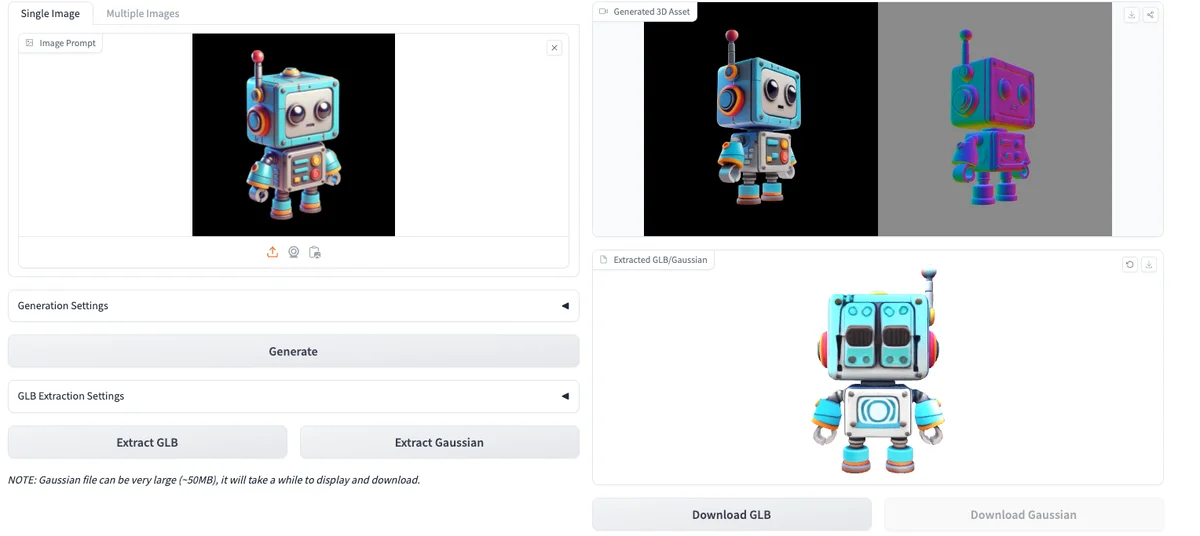
Online Demo
Quick Start
System Requirements
- CUDA-compatible NVIDIA GPU (RTX 30/40 series recommended)
- CUDA Toolkit 11.8 or 12.2
- Python 3.8+
- conda package manager
Installation Steps
- Clone the repository:
       git clone https://github.com/microsoft/TRELLIS.git
cd TRELLIS- Create and activate conda environment:
       # Using CUDA 11.8
. ./setup.sh --new-env --basic --xformers --flash-attn --diffoctreerast --spconv --mipgaussian --kaolin --nvdiffrast

# For CUDA 12.2, manually install dependencies
conda create -n trellis python=3.10
conda activate trellis
pip install -r requirements.txt- Download pre-trained models:
Currently available pre-trained models include:
- TRELLIS-image-large: Large image-to-3D model (1.2B parameters)
- TRELLIS-text-base: Base text-to-3D model (342M parameters)
- TRELLIS-text-large: Large text-to-3D model (1.1B parameters)
- TRELLIS-text-xlarge: Extra-large text-to-3D model (2.0B parameters)
You can download these models from Hugging Face.
Usage Tutorial
Image-to-3D Example
       import os
# Set backend
os.environ['SPCONV_ALGO'] = 'native'  # Options: 'native' or 'auto'

import imageio
from PIL import Image
from trellis.pipelines import TrellisImageTo3DPipeline
from trellis.utils import render_utils, postprocessing_utils

# Load model
pipeline = TrellisImageTo3DPipeline.from_pretrained("JeffreyXiang/TRELLIS-image-large")
pipeline.cuda()

# Load input image
image = Image.open("input.png")

# Run generation
outputs = pipeline.run(
    image,
    seed=1,
    # Optional parameters
    # sparse_structure_sampler_params={
    #     "steps": 12,
    #     "cfg_strength": 7.5,
    # },
    # slat_sampler_params={
    #     "steps": 12,
    #     "cfg_strength": 3,
    # },
)

# Render preview video
video = render_utils.render_video(outputs['gaussian'][0])['color']
imageio.mimsave("preview_gs.mp4", video, fps=30)

# Export 3D file
glb = postprocessing_utils.to_glb(
    outputs['gaussian'][0],
    outputs['mesh'][0],
    simplify=0.95,          # Mesh simplification ratio
    texture_size=1024,      # Texture size
)
glb.export("output.glb")

# Save point cloud data
outputs['gaussian'][0].save_ply("output.ply")
Web Demo Interface
TRELLIS provides a Gradio-based web demo interface. Run the following commands to start:
       # Install additional dependencies
. ./setup.sh --demo

# Start service
python app.py
After starting, you can access the web interface through your browser.
Best Practices
- Input Image Recommendations:
- Use clear images with moderate contrast
- Ensure object contours are clearly visible
- Avoid complex backgrounds and occlusions
- Generation Parameter Tuning:
- Increase sampling steps for better quality
- Adjust cfg_strength parameter to control generation fidelity
- Try different random seeds
- Performance Optimization:
- Use native backend for faster initial runs
- Reduce texture resolution to decrease VRAM usage
- Adjust mesh simplification ratio as needed during export
Common Issues
- Insufficient VRAM:
- Reduce batch size
- Use smaller model versions
- Decrease sampling steps
- Generation Quality Issues:
- Check input image quality
- Increase sampling steps
- Adjust cfg_strength parameter
- Large Export Files:
- Increase mesh simplification ratio
- Reduce texture resolution
- Choose appropriate file formats
References
More Articles
Manus Introduces Cue: A Personal AI Agent with Its Own Email, Phone, and Wallet
ZCode Said It Was Only Indexing Code. It Also Opened the Project History.

OpenClaw 2.0 Is Here: Agents Can Finally Pick Up Where They Left Off
Ox Alpha Unmasked: Z.ai's GLM-5.3-Flash Clocks 44T Tokens
GLM-5.3 Is Here: The Base Model Stays, While Post-Training Scales Up

DeepSeek Harness Is Open: The Agent Runtime Is Now a Plugin Tree
FFmpeg 9.0 "Lei" Is Here: A Tribute to Lei Xiaohua, Ten Years Later
DeepSeek-V4-Flash Beats GLM, Nears Opus 4.8 at a Lower Price
GPT-5.6 Luna Gets an 80% Price Cut: Output Falls to $1.20 per 1M Tokens