Download, Trim, and Manage Videos in One macOS App
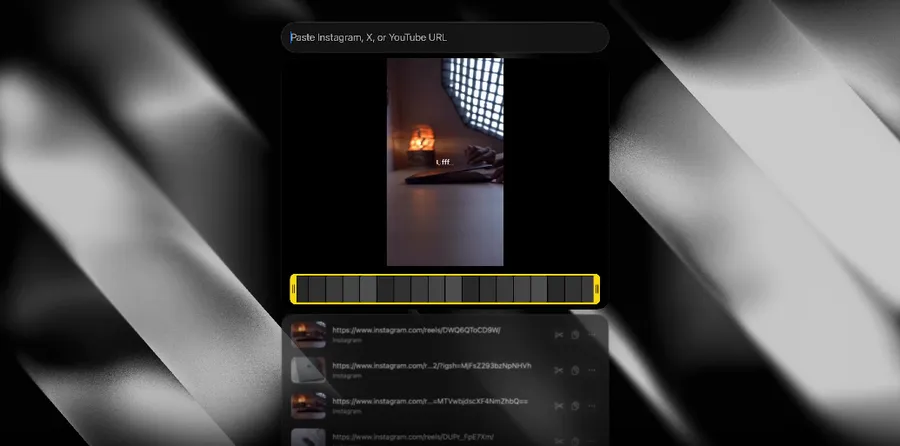
Media Downloader turns video download, MP4 conversion, quick trimming, Finder access, file copying, and history management into one lightweight macOS app without command flags.
Published 163 days ago. Content may be outdated.
Downloading public videos on macOS is often more annoying than it should be. Web tools are full of ads, while yt-dlp is powerful but still requires command-line work.
Media Downloader is not just a download button. It puts video download, MP4 conversion, quick trimming, Finder access, file copying, and history management into one lightweight macOS app.
Why Try It?
It is not a stronger download engine. It is a cleaner desktop interface for an already strong one.
Site support still depends on yt-dlp, so “thousands of sites” means public video sites supported by that project, not a way to bypass permissions or copyright restrictions.
The useful part is the workflow after downloading: copy the file, reveal it in Finder, revisit history, or trim the video without jumping between Terminal and folders.
Who Is It For?
Try it if you often save public videos for editing, tutorials, product research, course notes, or personal archiving.
It is also useful when teammates need a simple app instead of a terminal command.
If you need batch automation, proxy setup, server downloads, or advanced scripting, plain yt-dlp is still the better tool.
How To Use It
Download it from GitHub Releases:
https://github.com/pixel-point/media-downloader/releases
Basic flow:
- Open the app
- Paste a public video URL
- Download the video
- Convert or trim if needed
- Copy the file or reveal it in Finder
Notes
If a site suddenly fails, the app may not be broken. The site may have changed, and yt-dlp may need an update.
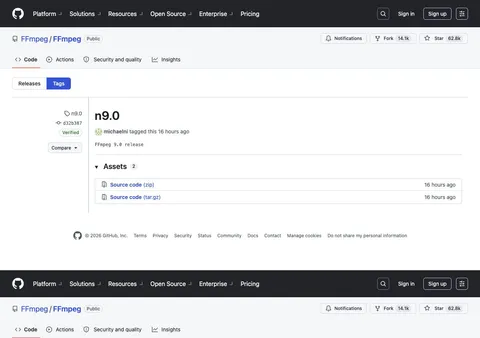
Conversion and trimming depend on ffmpeg, so check that path first if download works but processing fails.
Use it only for content you are allowed to access, save, and reuse.
More Articles