Complete Guide to go2rtc - Open Source Streaming Server Setup
A comprehensive guide to installing and configuring go2rtc, including deployment methods for Windows/Linux/Docker, multi-protocol streaming configuration for RTSP/WebRTC/RTMP, and integration guides for popular camera brands like Hikvision and Dahua
Published 686 days ago. Content may be outdated.
What is go2rtc?
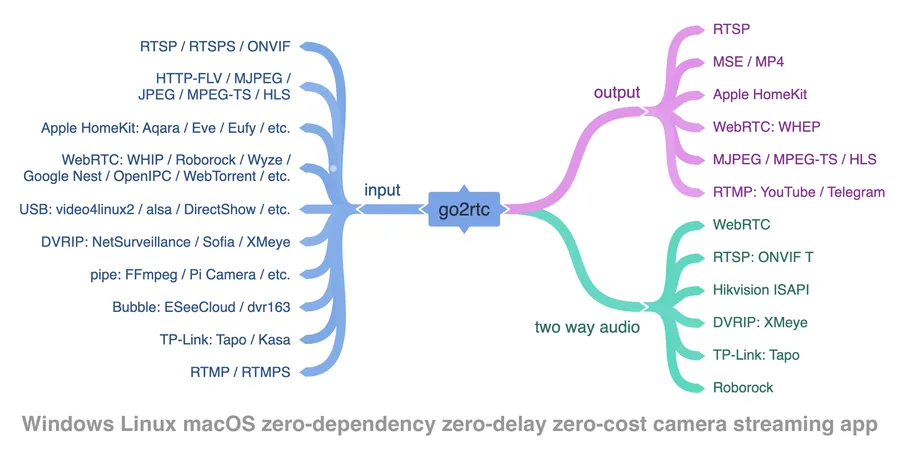
go2rtc is an ultimate camera streaming application that supports multiple protocols including RTSP, WebRTC, HomeKit, FFmpeg, and RTMP.
Key Features:
- Zero-dependency, zero-configuration small application supporting all operating systems (Windows, macOS, Linux, ARM)
- Zero-latency streaming with multiple protocols (lowest possible stream delay)
- Stream from various sources: RTSP, RTMP, DVRIP, HTTP (FLV/MJPEG/JPEG/TS), USB cameras
- Support for any FFmpeg-compatible source
- Stream to RTSP, WebRTC, MSE/MP4, HomeKit, HLS, or MJPEG
- Publish to popular streaming services (YouTube, Telegram, etc.)
- First project worldwide to support streaming from HomeKit cameras
- WebRTC with H265 support in browsers (Safari only)
- Real-time transcoding for unsupported codecs via FFmpeg
- Audio playback and live streaming on supported cameras
- Multi-source bidirectional codec negotiation
- Mix tracks from different sources into a single stream
- Automatic codec matching for client support
- Two-way audio on supported cameras
- Stream from private networks via ngrok
- Integration with any smart home platform or standalone use
Quick Start Guide
Binary Installation
Download the appropriate binary for your system from the latest release:
go2rtc_win64.zip- Windows 10+ 64-bitgo2rtc_win32.zip- Windows 7+ 32-bitgo2rtc_win_arm64.zip- Windows ARM 64-bitgo2rtc_linux_amd64- Linux 64-bitgo2rtc_linux_i386- Linux 32-bitgo2rtc_linux_arm64- Linux ARM 64-bit (e.g., Raspberry 64-bit OS)go2rtc_linux_arm- Linux ARM 32-bit (e.g., Raspberry 32-bit OS)go2rtc_linux_armv6- Linux ARMv6 (older Raspberry 1 and Zero)go2rtc_linux_mipsel- Linux MIPS (e.g., Xiaomi Gateway 3, Wyze cameras)go2rtc_mac_amd64.zip- macOS 10.13+ Intel 64-bitgo2rtc_mac_arm64.zip- macOS ARM 64-bit
Note: For Linux and Mac, remember to set execute permissions: chmod +x go2rtc_xxx_xxx
Docker Installation
The alexxit/go2rtc Docker container supports multiple architectures including amd64, 386, arm64, and arm. This container provides the same functionality as the Home Assistant add-on but is designed to run independently. It comes pre-installed with FFmpeg, ngrok, and Python.
Home Assistant Add-on Installation
- Install the add-on:
- Settings > Add-ons > Add Repository > Add
https://github.com/AlexxIT/hassio-addons - go2rtc > Install > Start
- Settings > Add-ons > Add Repository > Add
- Configure the integration
Basic Configuration
By default, go2rtc looks for go2rtc.yaml in the current working directory:
apiserver starts on port 1984 (TCP)rtspserver starts on port 8554 (TCP)webrtcuses port 8555 (TCP/UDP) for connectionsffmpeguses default transcoding options
Available modules:
- streams - Stream configuration
- api - HTTP API (essential for WebRTC)
- rtsp - RTSP server (essential for FFmpeg)
- webrtc - WebRTC server
- mp4 - MSE, MP4 streaming and MP4 snapshot server
- hls - HLS TS or fMP4 streaming server
- mjpeg - MJPEG server
- ffmpeg - FFmpeg integration
- ngrok - ngrok integration (external access for private networks)
- hass - Home Assistant integration
- log - Logging configuration
Stream Configuration Examples
RTSP Stream Configuration
       streams:
  # Basic RTSP stream
  camera1: rtsp://admin:[email protected]:554/stream1

  # Multi-stream configuration (main + sub streams)
  dahua_camera:
    - rtsp://admin:[email protected]/cam/realmonitor?channel=1&subtype=0 # Main stream
    - rtsp://admin:[email protected]/cam/realmonitor?channel=1&subtype=1 # Sub stream

  # Configuration with two-way audio
  doorbell:
    - rtsp://admin:[email protected]:554/cam/realmonitor?channel=1&subtype=0#backchannel=1
FFmpeg Transcoding Configuration
       streams:
  # Rotate video 90 degrees
  rotate_camera: ffmpeg:rtsp://camera_ip/stream#video=h264#rotate=90

  # Transcode audio to AAC
  audio_transcode: ffmpeg:rtsp://camera_ip/stream#audio=aac

  # Transcode both video and audio
  full_transcode: ffmpeg:rtsp://camera_ip/stream#video=h264#audio=aac#scale=1280:720
WebRTC Configuration
       webrtc:
  # Allow external access
  listen: :8555

  # Configure STUN servers
  candidates:
    - stun:stun.l.google.com:19302

  # Enable debug logging
  debug: true
Security Configuration
       # Restrict API and RTSP to local access only
api:
  listen: 127.0.0.1:1984
  # Add basic authentication
  login: admin
  password: your_password

rtsp:
  listen: 127.0.0.1:8554

# WebRTC needs external access
webrtc:
  listen: :8555
Best Practices
- Camera Selection Tips:
- Dahua - Standard protocol implementation, rich settings, high stream quality
- Hikvision - Feature-rich but relies on proprietary protocols
- Reolink - Some models have poor RTSP implementation, consider using RTMP
- TP-Link - Limited concurrent connections, potential packet loss
- Performance Optimization:
- Use native encoding when possible, avoid unnecessary transcoding
- Use sub-streams for performance-limited devices
- Enable TCP mode with RTSP for better stability
- Security Recommendations:
- Restrict API and RTSP to local access only
- Enable authentication for external WebRTC access
- Use HTTPS for better security
Troubleshooting Common Issues
- Stream Not Playing:
- Check network connectivity and firewall settings
- Verify camera URLs and authentication credentials
- Review logs for specific error messages
- Video Stuttering:
- Check network bandwidth availability
- Try reducing video bitrate or resolution
- Consider using sub-streams
- Audio Issues:
- Confirm camera audio support
- Check audio codec compatibility
- Verify backchannel configuration for two-way audio
More Articles